Start and End Parameter Mapping
Start and End Parameter Mapping lets you configure mappings for a Workflow's In and Out Parameters.
Start Parameter Mapping
Assume you've created a Workflow with a first Step that contains a System_Mail_Send Job Call. By default, when you first create that Job Call, RunMyJobs shows a red indicator to show that you need to supply a Parameter value.
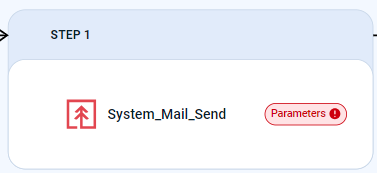
Assume you'd like to be able to supply this value when you run the Workflow. To do so, you will need to add an In Parameter to the Workflow. To easily add such a Parameter:
-
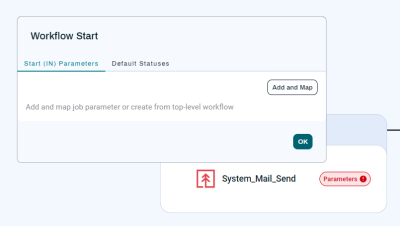
Click the Workflow's START icon. The Workflow Start overlay displays.
-
Click Add and Map. The Add and Map Parameter overlay displays, with a tree view of the Workflow's Job Definition Parameters.
-
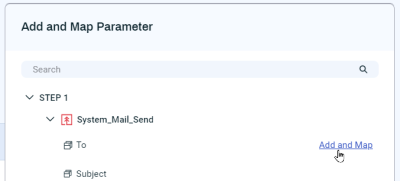
The next step is to specify Job Definition Parameter that you want to map to. Either use the Search field at the top to find this Parameter, or expand the tree until you locate it. In this case, we're looking for the To Parameter. Hover over the target Parameter to display the Add and Map button, then click it.
-
RunMyJobs creates a Workflow-level In Parameter with the same name as the target Parameter and maps to it. You can verify the mapping by looking at the Workflow Start overlay.
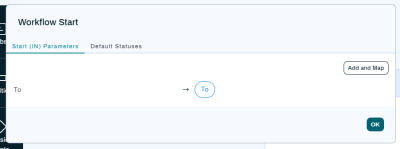
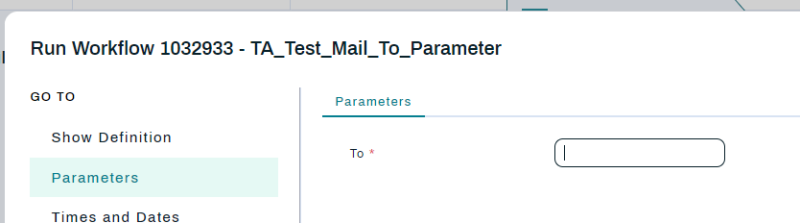
Now the user will be able to supply a To value when they run the Workflow, and that value will be mapped to the To field in the System_Mail_SendJob Call.
End Parameter Mapping
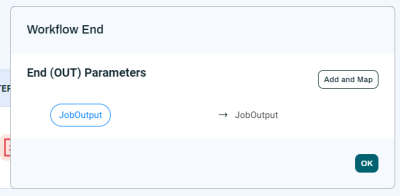
Assume you have a Job Definition that performs some actions and generates some output, and the output is sent to an Out Parameter named Job_Output. Assume that you have created a Workflow Definition that includes a call to this Job Definition, and you want to map the Job_Output value to an Out Parameter on the Workflow named Workflow_Out. To easily add such a Parameter:
-
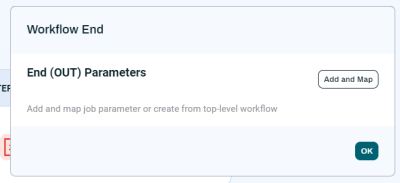
Click the Workflow's END icon. The Workflow End overlay displays.
-
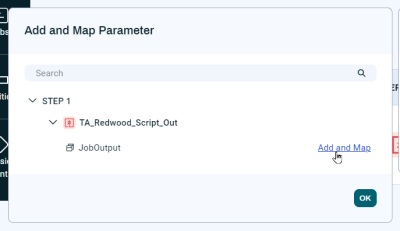
Click Add and Map. The Add and Map Parameter overlay displays, with a tree view of the Workflow's Job Definition Parameters.
-
The next step is to specify Job Definition Parameter that you want to map from. Either use the Search field at the top to find this Parameter, or expand the tree until you locate it. In this case, we're looking for the JobOutput Parameter. Hover over the target Parameter to display the Add and Map button, then click it.
-
RunMyJobs creates a Workflow-level Out Parameter with the same name as the source Parameter and maps to it. You can verify the mapping by looking at the Workflow End overlay.